WisDM Network Interface Management
To ensure a stable and continuous Internet connection, WisDM gateways support multiple network interfaces through a feature called Multi-WAN. This feature allows the gateway to maintain an online presence automatically switching between available connections based on defined priorities.
Each WisDM-compatible gateway can support up to three types of Internet connections, which can be configured simultaneously:
- Ethernet: A connection provided via an Ethernet cable (default port type: WAN).
- Wi-Fi: A connection established through a wireless Wi-Fi network.
- Cellular: A connection provided via a SIM card using the cellular network (available on models equipped with a cellular module).
How Multi-WAN Works
- Automatic failover: Multi-WAN monitors all enabled interfaces and switches to the next available one if the primary connection becomes unavailable.
- Priority-based switching: The order of interfaces is user-defined, allowing control over which connection is preferred.
- High availability: The gateway remains online as long as at least one interface is active. It only goes offline when all enabled interfaces lose connectivity.
- Network interfaces are configured per gateway. However, to streamline the process and apply settings in bulk, you can use the Synchronize Network Interface Settings feature.
- Network interface status information is synchronized from the gateway at approximately 10-minute intervals.
WAN Interface Priority
WAN interface priority defines the order in which the gateway uses available WAN interfaces for internet connectivity.
The gateway tries to use the Primary interface first. If the Primary interface becomes unavailable, the gateway can switch to the Secondary interface. If the Secondary interface is also unavailable, the gateway can switch to the Tertiary interface.
| Priority Label | Description |
|---|---|
| Primary | The first WAN interface the gateway tries to use. |
| Secondary | The backup WAN interface used when the Primary interface is unavailable. |
| Tertiary | The fallback WAN interface used when both Primary and Secondary interfaces are unavailable. |
- Navigate to Gateways > Select a gateway > Network interface > WAN, then click Edit.
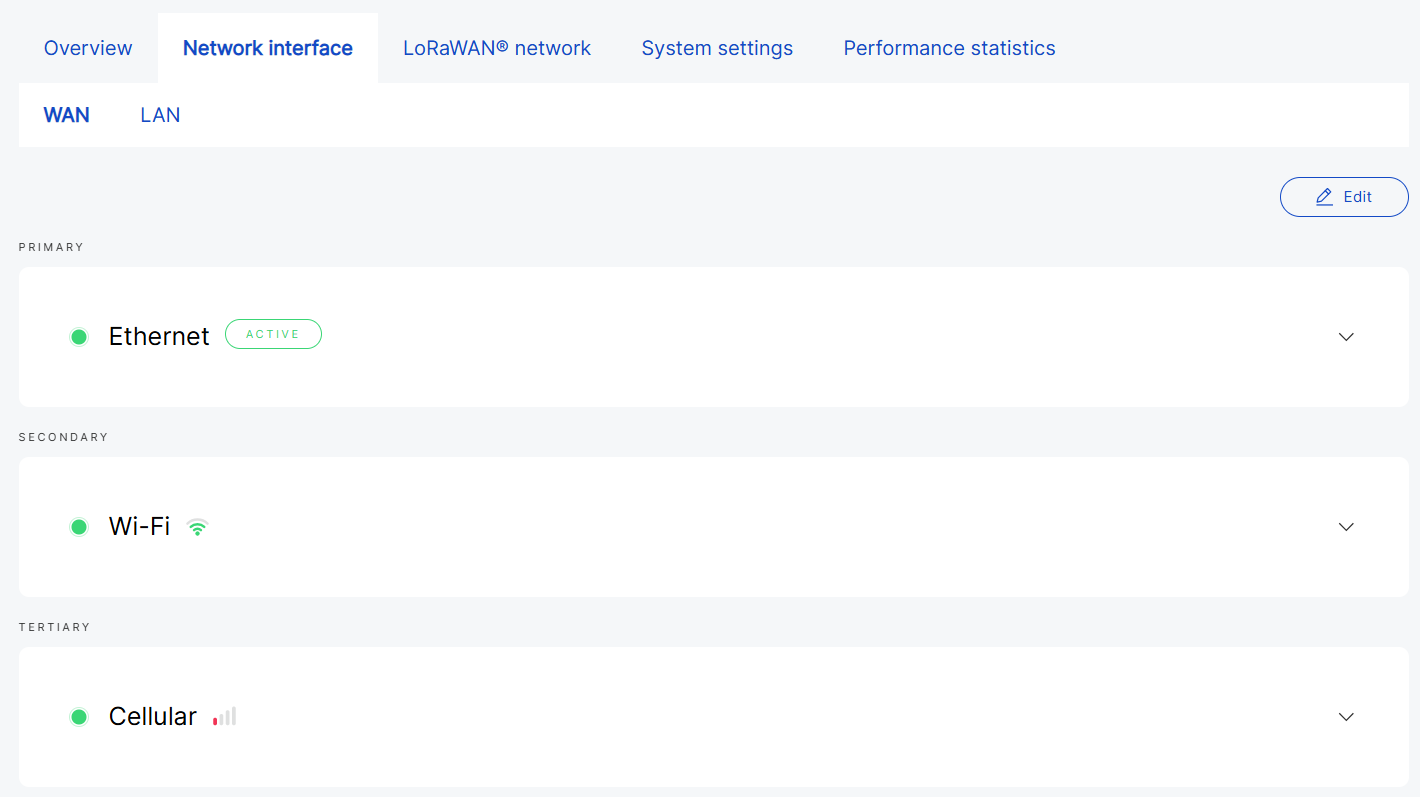 Figure 1: Network interfaces
- Use the arrows (

 ) to adjust priority.
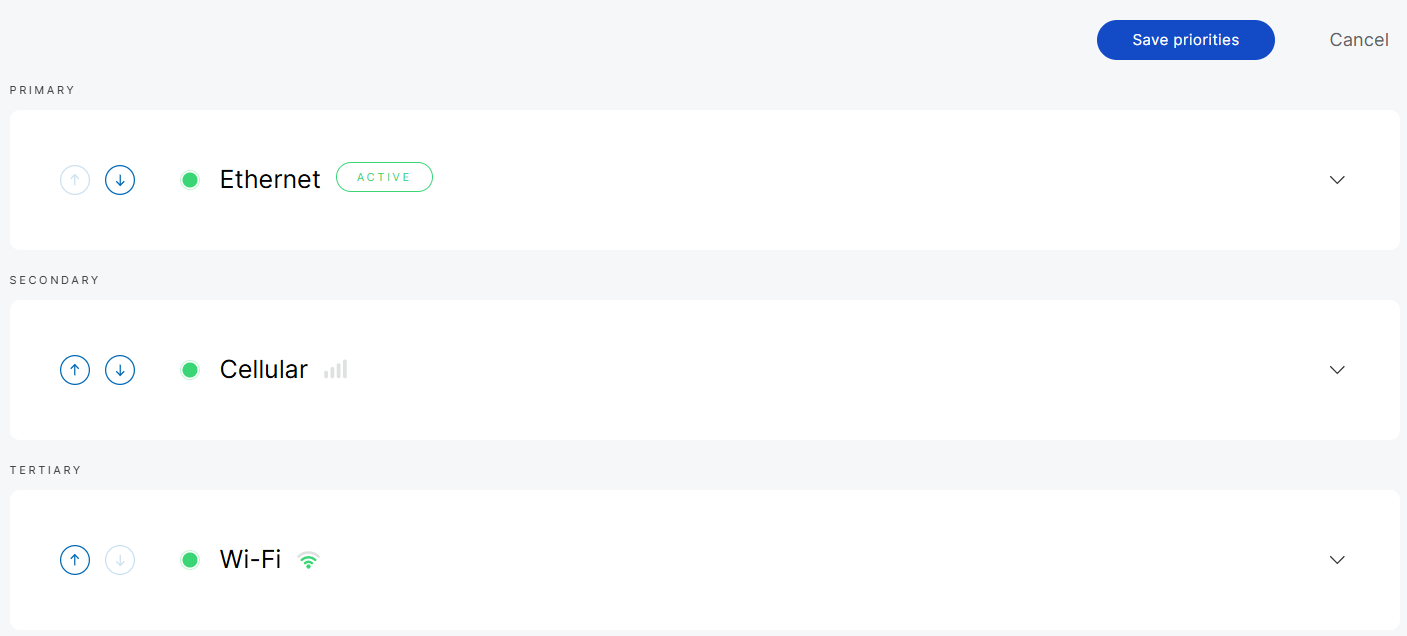 Figure 1: Configure network priorities
-
Up arrow: Increases priority.
-
Down arrow: Decreases priority.
- Click Save priorities to apply the changes. The new configuration will be sent to the gateway.
 Figure 1: Apply updates
If priority updates are not applied within 3 minutes, you can either Delete pending changes (which will keep the gateway's existing configuration) or Resend them.
WAN Interfaces
The WAN interfaces (Ethernet, Wi-Fi, and Cellular) provide visibility and control over the gateway’s network connectivity.
You can:
- Monitor the connection status of each interface
- View signal strength and quality metrics for Wi-Fi and Cellular connections
- Configure network parameters based on your deployment requirements
The availability of WAN interfaces depends on the hardware capabilities of the gateway. Not all interfaces are supported on every device, and only the available interfaces will be displayed in the system.
WAN Status Indicators
On the WAN page, WisDM displays status indicators and labels to show the current state of each WAN interface.
| Indicator | Description |
|---|---|
 Green status indicator Green status indicator | The WAN interface is enabled and currently available for WAN connection. |
 Red status indicator Red status indicator | The WAN interface is not currently available for WAN connection. This may happen when the interface is disabled, disconnected, has no SIM card, fails to connect, or fails the connectivity check. |
 ACTIVE ACTIVE | Indicates the WAN interface currently used by the gateway for internet connectivity. Only one WAN interface can be active at a time. |
 NO SIM CARD NO SIM CARD | Indicates that no SIM card is detected or the SIM card is unavailable. |
 Wi-Fi signal strength Wi-Fi signal strength | Indicates the Wi-Fi signal condition. More signal arcs generally mean a stronger Wi-Fi signal. |
 Wi-Fi unavailable Wi-Fi unavailable | Indicates that the Wi-Fi interface is not currently connected or no valid Wi-Fi signal information is available. This may happen when Wi-Fi is disabled, disconnected, or fails to connect. |
 Cellular signal strength Cellular signal strength | Indicates the cellular signal condition. More signal bars generally mean a stronger cellular signal. |
 Cellular unavailable Cellular unavailable | Indicates that the Cellular interface is not currently connected or no valid cellular signal information is available. This may happen when Cellular is disabled, no SIM card is detected, the SIM card is unavailable, or the cellular connection fails. |
Ethernet
- View interface details by clicking on the interface name or the arrow next to it.
 Figure 1: Ethernet details
-
Protocol type: The current protocol used.
-
IP Address: The IP address assigned to the gateway.
-
Netmask: The network mask of the gateway.
-
Connection time: The duration for which the gateway has been connected to the interface.
- Click Settings to configure the Ethernet interface.
General
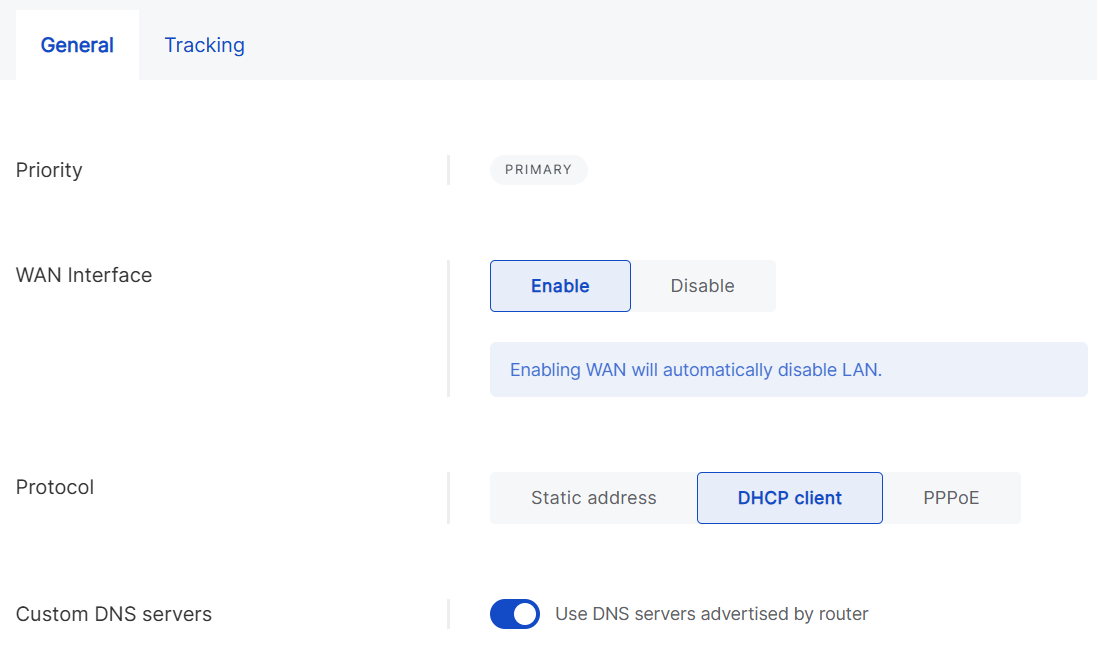 Figure 1: Ethernet general settings
- WAN Interface: Enable or disable WAN. Enabling WAN will automatically disable LAN.
- Protocol
- Static address: Manually configure the IP address, netmask, router, and DNS servers.
- DHCP client: Automatically obtain IP configuration from the router’s DHCP server.
- PPPoE: Configure Point-to-Point Protocol over Ethernet with the username and password provided by your ISP.
- Use DNS servers advertised by router: Enable this to use DNS from the router. If you want to use a custom DNS server, you need to disable this option.
- DNS Server: Add custom DNS servers.
Tracking
Tracking monitors connectivity through periodic tests. If an interface becomes unstable, the gateway fails over to another connection and will switch back once stability is restored, provided that connection has higher a priority.
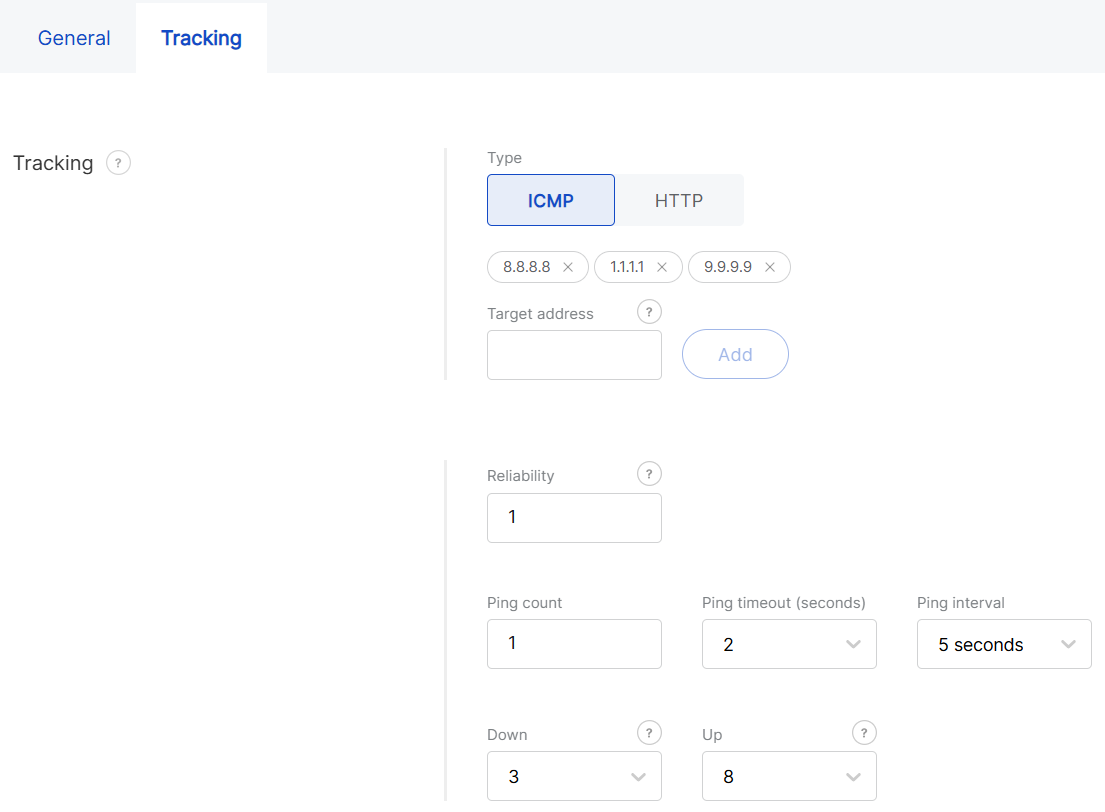 Figure 1: Ethernet tracking settings
- Type
- ICMP: Uses ping requests to verify reachability (e.g., 8.8.8.8).
- HTTP: Uses HTTP requests to check if a target website is reachable.
- Target address: IP address for the ICMP tracking method or domain name/URL for HTTP.
- Reliability: Minimum number of addresses that must respond to confirm a successful ping.
- Ping count: Number of ping packets sent per test.
- Ping timeout (seconds): Maximum time to wait for a ping response.
- Ping interval: Time interval between each health check cycle.
- Down: Number of consecutive failed attempts required to mark the interface as Down.
- Up: Number of consecutive successful attempts required to mark the interface as Up again.
Wi-Fi
- View interface details by clicking on the interface name or the arrow next to it.
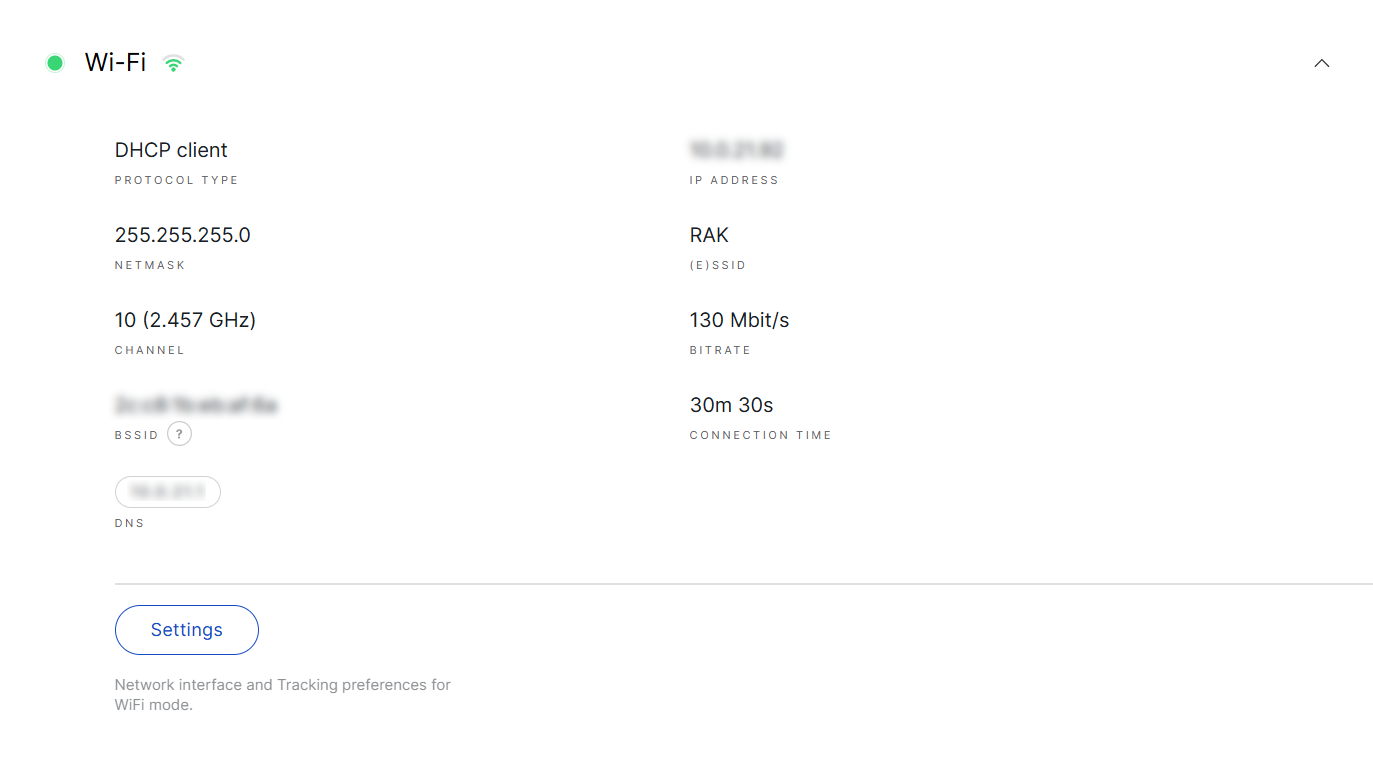 Figure 1: WiFi details
-
Protocol Type: The current protocol used.
-
IP Address: The IP address assigned to the gateway.
-
Netmask: The netmask assigned to the gateway.
-
(E)SSID: The SSID of the Wi-Fi network.
-
Channel: The operating frequency of the Wi-Fi network.
-
Bitrate: The bitrate of the Wi-Fi network.
-
BSSID: The MAC address of the Wi-Fi access point or router.
-
Connection time: The duration the gateway has been connected to the Wi-Fi interface.
-
DNS: DNS server address.
- Click Settings to configure the Wi-Fi interface.
General
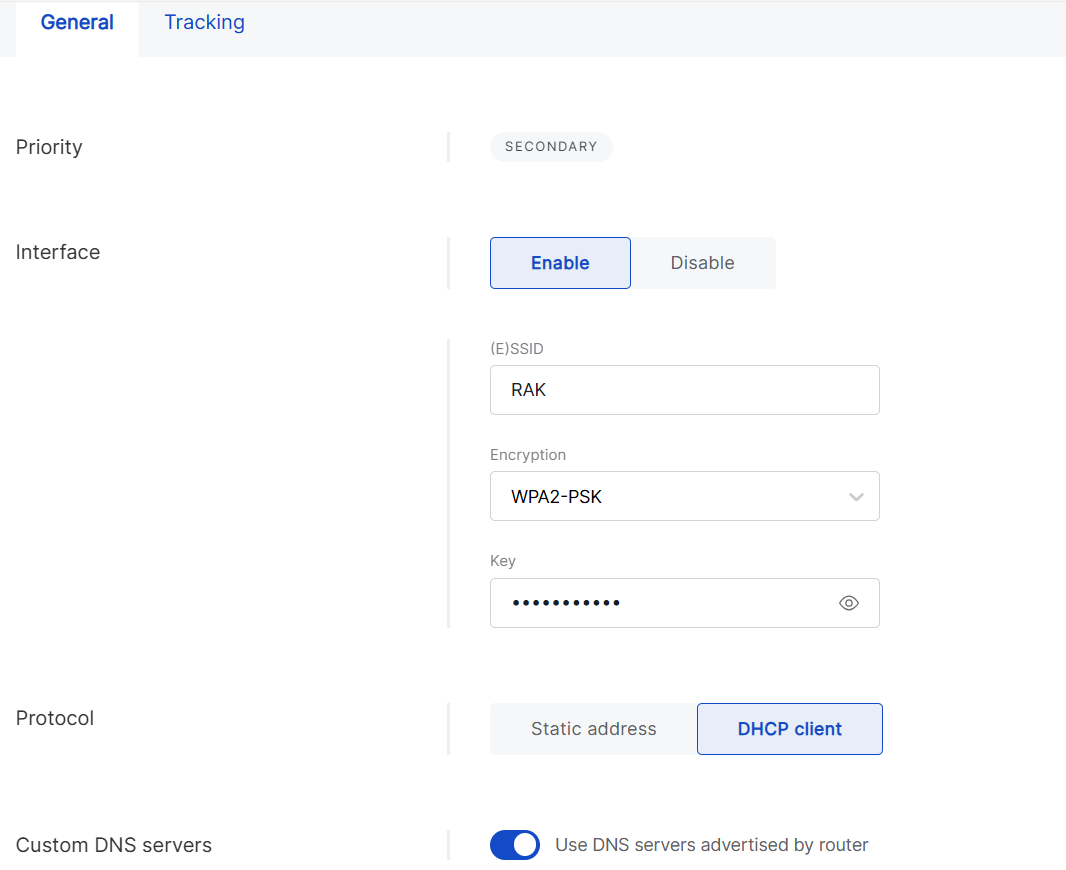 Figure 1: Wi-Fi general settings
- Enabled/Disabled: Enable or disable the Wi-Fi interface.
- Available (E)SSID networks: Scan for available Wi-Fi networks, select one, or manually enter the details.
- (E)SSID: Extended Service Set Identifier.
- Encryption: Select the type of encryption used by the network and enter the password. Options include No Encryption, WPA-PSK, WPA2-PSK, and WPA-PSK/WPA2-PSK Mixed Mode (recommended).
- Protocol
- Static address: Manually configure the IP address, netmask, router, and DNS servers.
- DHCP client: Automatically obtain IP configuration from the router's DHCP server.
- Use DNS servers advertised by router: Enable this option to use the DNS servers provided by the router. If you prefer to use a custom DNS server, you must disable this option.
- DNS Server: Add custom DNS servers.
Tracking
Tracking monitors connectivity trough periodic tests. If an interface becomes unstable, the gateway fails over to another connection and switches back once stability is restored, as long as the original connection has a higher priority.
Figure 1: Wi-Fi tracking settings- Type
- ICMP: Uses ping requests to verify reachability (e.g., 8.8.8.8).
- HTTP: Uses HTTP requests to check if a target website is reachable.
- Target address: IP address for the ICMP tracking method or domain name/URL for HTTP.
- Reliability: Defines the minimum number of responses needed to confirm a successful ping.
- Ping count: Number of ping packets sent per test.
- Ping timeout (seconds): Maximum time to wait for a ping response.
- Ping interval: Time interval between each health check cycle.
- Down: Number of consecutive failed attempts required to mark the interface as Down.
- Up: Number of consecutive successful attempts required to mark the interface as Up again.
Cellular
- View interface details by clicking on the interface name or the arrow next to it.
 Figure 1: Cellular details
-
IP Address: The IP assigned to the gateway.
-
Netmask: The netmask assigned to the gateway.
-
IMSI: International Mobile Subscriber Identity.
-
ICCID: Integrated Circuit Card Identifier.
-
Connection time: The duration for which the gateway has been connected to the interface.
-
IMEI: International Mobile Equipment Identity.
-
Network: The cellular network standard.
-
DNS: DNS server address.
-
RSRP: Reference Signal Received Power, indicating the strength of the received LTE reference signal.
-
RSSI: Received Signal Strength Indicator, representing the total received signal power, including interference and noise.
-
RSRQ: Reference Signal Received Quality, reflecting signal quality by considering both interference and signal strength.
-
SINR: Signal-to-Interference-and-Noise Ratio, measuring signal quality relative to background noise.
-
RAT: Radio Access Technology, indicating the wireless technology in use.
-
SIM Card Status: The status of the SIM card.
- Click Settings to configure the cellular interface.
General
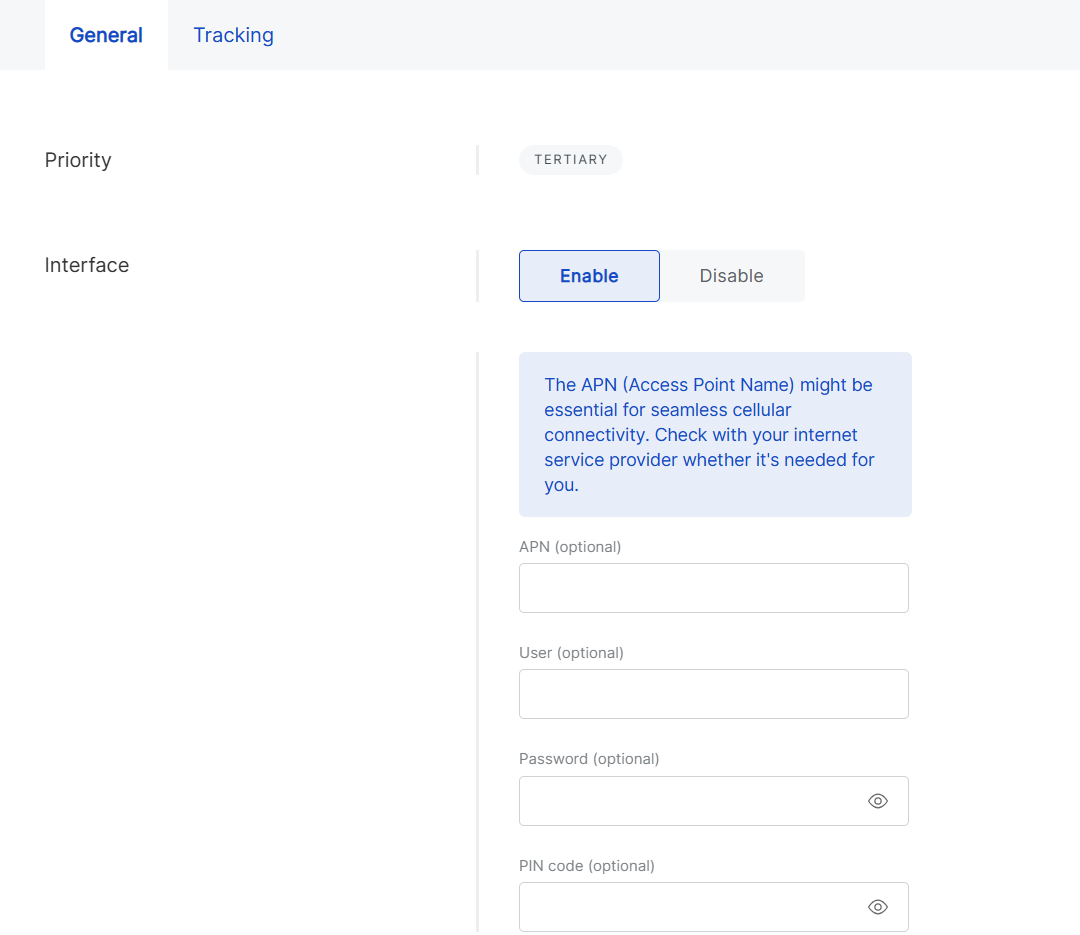 Figure 1: Cellular general settings
- Enabled/Disabled: Toggle the cellular interface on or off.
- APN (optional): Enter the Access Point Name for the connection.
- User (optional): Specify the username for authentication (leave blank if not required).
- Password (optional): Enter the password for authentication (leave blank if not required).
- PIN code (optional): Enter the SIM card's PIN code (leave blank if not required).
Tracking
Tracking monitors connectivity through periodic tests. If an interface becomes unstable, the gateway will switch to another connection and revert to the original once stability is restored, provided it has a higher priority.
Figure 1: Ethernet tracking settings- Type
- ICMP: Uses ping requests to verify reachability (e.g., 8.8.8.8).
- HTTP: Uses HTTP requests to check if a target website is reachable.
- Target address: IP for the ICMP tracking method or domain name/URL for HTTP.
- Reliability: Defines the minimum number of addresses that must respond to confirm a successful ping.
- Ping count: Number of ping packets sent per test.
- Ping timeout (seconds): Maximum time to wait for a ping response.
- Ping interval: Time interval between each health check cycle.
- Down: Number of consecutive failed attempts required to mark the interface as Down.
- Up: Number of consecutive successful attempts required to mark the interface as Up again.
LAN Interfaces
In addition to its connection to the internet (WAN group of settings), the gateway can share a connection with nearby devices.
LAN Status Indicators
On the LAN page, WisDM displays status indicators to show the current state of LAN interfaces.
LAN interfaces are used to provide local network access to nearby devices.
| Indicator | Description |
|---|---|
| Green status indicator | The LAN interface is enabled and available for local device access. |
| Red status indicator | The LAN interface is not currently available for local device access. This may happen when the interface is disabled or when the interface has an issue. |
Ethernet
The same Ethernet port can be configured for either WAN or LAN. In WAN mode, the gateway acts as a client to connect to the internet. In LAN mode, it acts as a server, providing network access to connected devices. The port cannot function as both simultaneously.
- View interface details by clicking on the interface name or the arrow next to it.
 Figure 1: Ethernet
- Click Settings to configure the LAN ethernet interface.
 Figure 1: Ethernet settings
-
Enabled/Disabled: Enable or disable the LAN Ethernet interface.
NOTEEnabling Ethernet LAN may result in the loss of the gateway's internet connection, which could trigger a rollback operation if no other interfaces are functioning.
Wi-Fi
Wi-Fi is another interface for providing local area network access. When LAN Wi-Fi is activated, the gateway functions as an access point, allowing nearby devices to connect.
- View interface details by clicking on the interface name or the arrow next to it.
 Figure 1: Wi-Fi
- Click Settings to configure the LAN Wi-Fi interface.
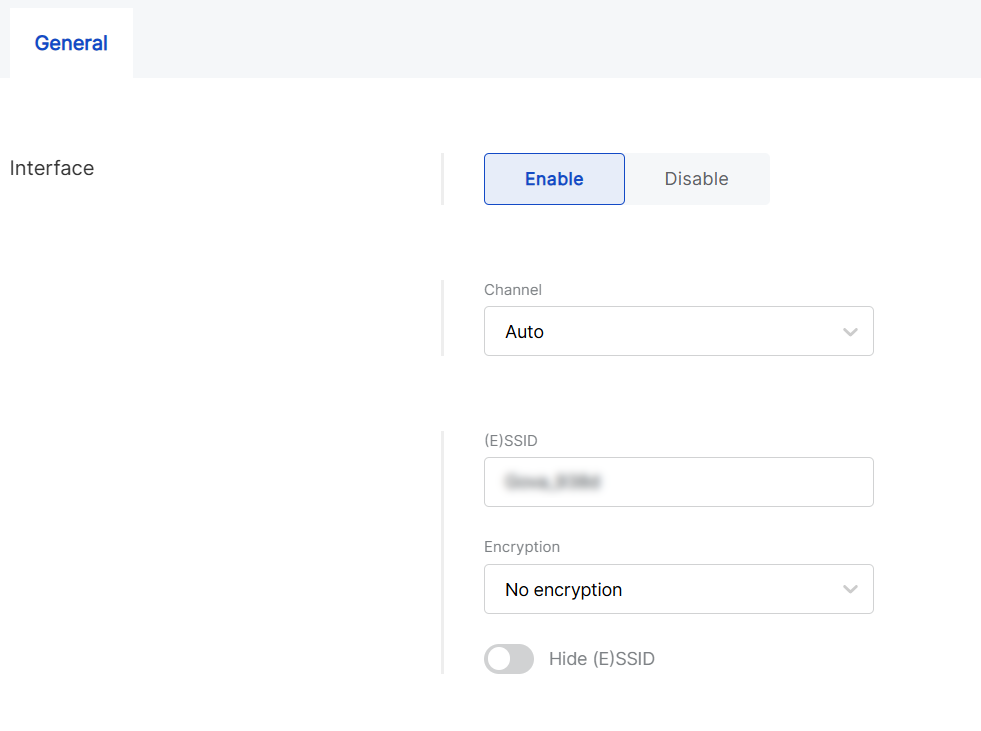 Figure 1: Wi-Fi settings
- Enabled/Disabled: Toggle the Wi-Fi LAN interface on or off.
- Channel: Configure the Wi-Fi channel. The default setting is Auto, which allows the gateway to select the optimal channel automatically.
- (E)SSID: Specify the SSID for the wireless access point (AP).
- Encryption: Choose the encryption type for the Wi-Fi AP. Options include No Encryption, WPA-PSK, WPA2-PSK, and WPA-PSK/WPA2-PSK Mixed Mode
- Hidden: Enable this option to conceal the SSID, making the AP invisible to devices searching for networks.
DHCP Server
For LAN interfaces, you can configure the DHCP server settings. By default, the gateway runs a built-in DHCP server that assigns IP addresses to connected devices, but you can adjust these settings as needed.
- To view the DHCP server details, click on the interface name or the arrow next to it.
 Figure 1: DHCP Server
- Click Settings to modify the configuration.
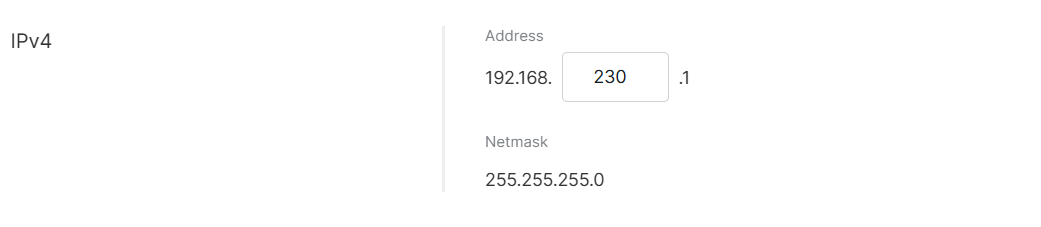 Figure 1: DHCP Server settings


