WisDM Solar Battery Monitoring
If your gateway supports a solar battery and is connected to it, you can monitor battery status from Gateways > Select your gateway > Overview > Solar battery.
The Solar battery card provides a quick summary of the battery status, including state of charge, working mode, active event count, and the latest charging or discharging status. Click View details to open the Solar battery details panel. You can also click Events to open the solar battery event log page.
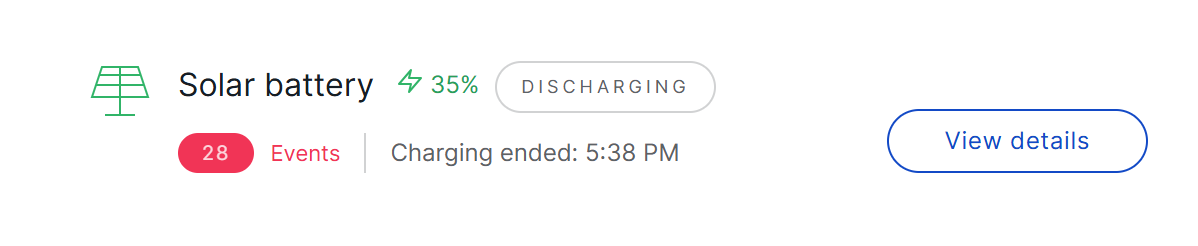 Figure 1: Solar battery card
Solar battery status is displayed only when Monitor solar battery is enabled. Solar battery information is available for online and offline gateways, but it is not available for gateways in Provisioning status.
Enable Solar Battery Monitoring
To enable solar battery monitoring:
-
Go to Gateways and select the target gateway.
-
Open the Overview tab.
-
In the Solar battery section, click Enable monitoring.
 Figure 1: Solar battery
 -
In the confirmation dialog, click Enable monitoring again.
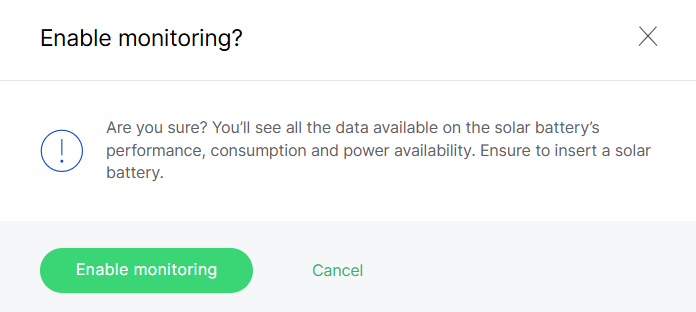 Figure 1: Confirm info
After monitoring is enabled, WisDM sends the update to the gateway. If the gateway is offline, the update is applied after the gateway comes online.
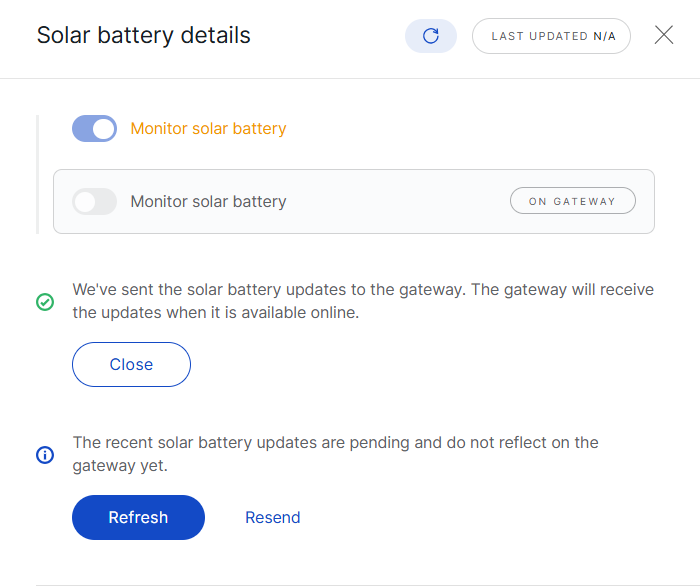 Figure 1: Apply the updates
If the recent solar battery update has not been applied to the gateway yet, you can:
- Click Refresh to check whether the gateway has reported the latest status.
- Click Resend to send the pending update to the gateway again.
Solar Battery Details
Click View details on the Solar battery card to open the Solar battery details panel.
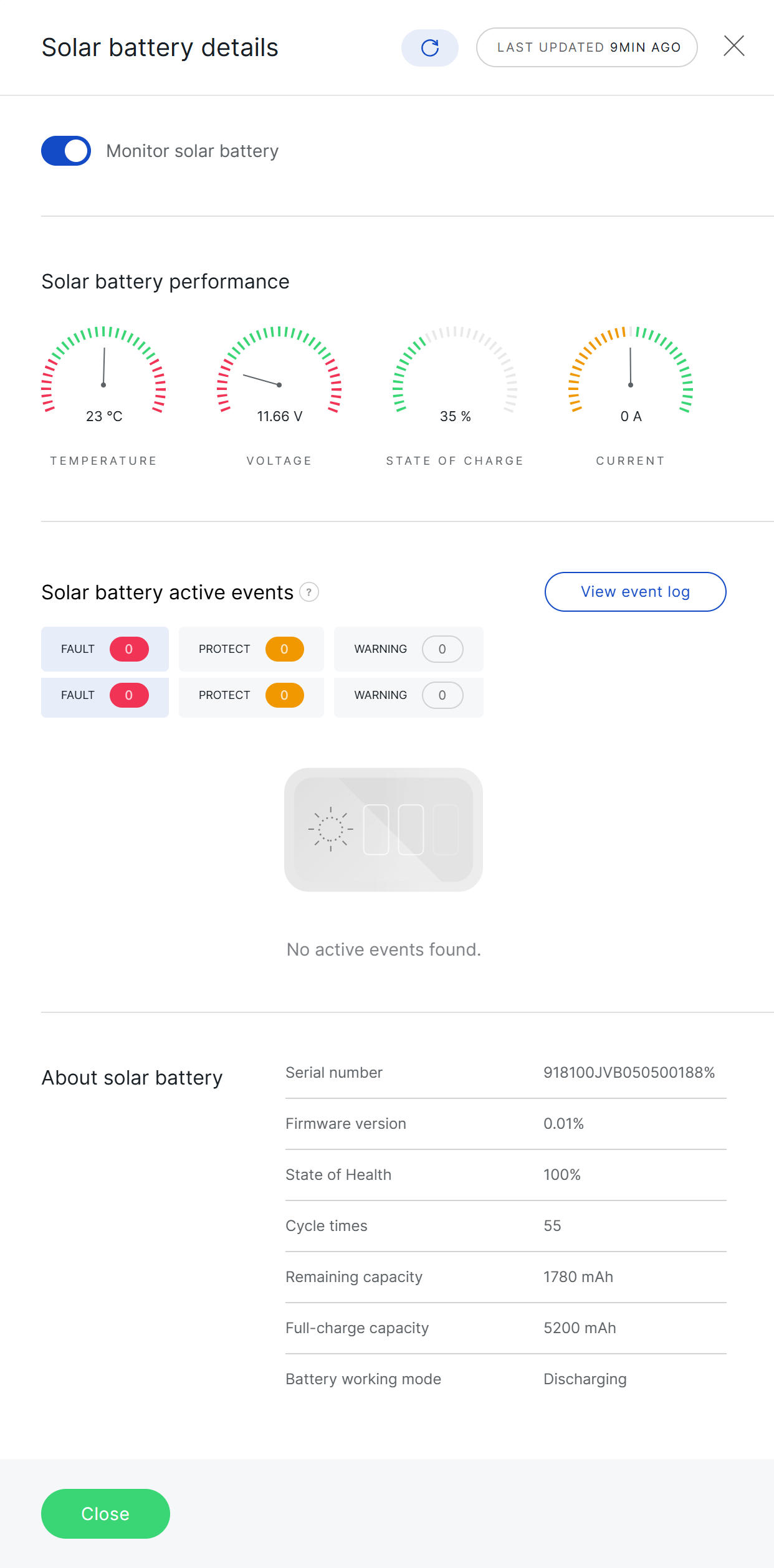 Figure 1: Solar battery details
| Section | Description |
|---|---|
| Monitor solar battery | Enables or disables solar battery monitoring for the gateway. |
| Solar battery performance | Displays the latest reported battery parameters, including temperature, voltage, state of charge, and current. |
| Solar battery active events | Shows the number of ongoing Fault, Protect, and Warning events. |
| About solar battery | Displays battery identity, firmware, health, capacity, cycle count, and working mode information. |
Solar Battery Performance
The Solar battery performance section displays the latest reported battery parameters. These values are synchronized from the gateway approximately every 10 minutes.
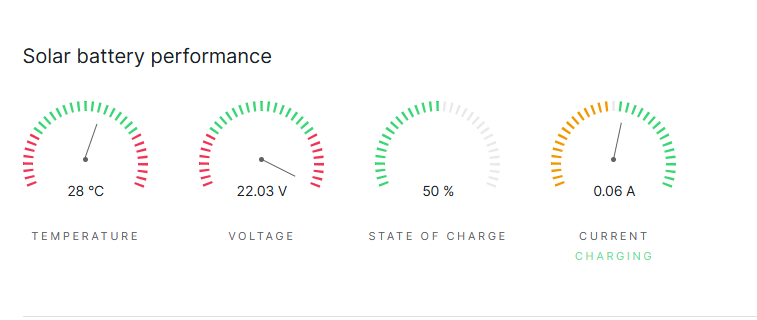 Figure 1: Solar Battery Performance
| Field | Description |
|---|---|
| Temperature | Shows the current battery temperature. |
| Voltage | Shows the current battery voltage. |
| State of Charge | Shows the remaining battery capacity as a percentage. |
| Current | Shows the latest reported battery current in A. A positive value indicates charging, a negative value indicates discharging, and 0 A indicates standby. |
Solar Battery Active Events
Active events are issues that are currently taking place on the solar battery. They are grouped into three types: Fault, Protect, and Warning.
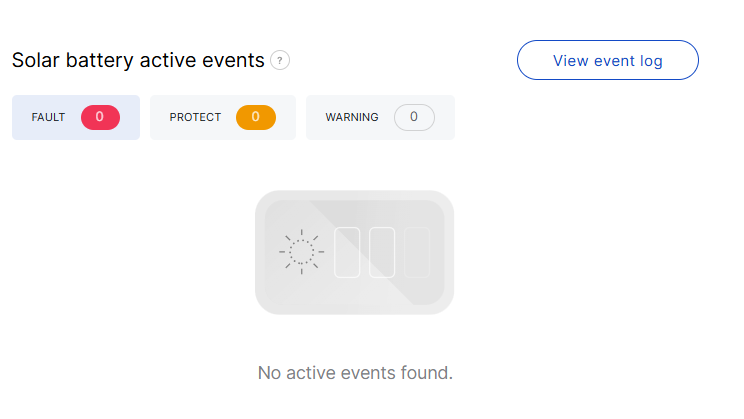 Figure 1: Active event overview
| Event Type | Description |
|---|---|
| Protect | Indicates that the system detected a condition that may damage the solar battery. The battery may temporarily stop supplying power and resume automatically when conditions return to normal. |
| Fault | Indicates a serious battery or circuit issue that may require maintenance or replacement. |
| Warning | Indicates an abnormal condition that may require attention, while the gateway can continue operating on battery power. |
View Event Log
Click View event log in the Solar battery active events section to open the event history page.
 Figure 1: Solar battery event log
The event log displays solar battery events, including issue start and end records. Each event record includes the following information:
| Field | Description |
|---|---|
| Type | The event type, such as Fault, Protect, or Warning. |
| Event | The battery event name. |
| Details | Additional information about the event, such as whether the issue started or ended. |
| Severity | The event severity, such as High, Medium, or Low. |
| Date | The date and time when the event occurred, displayed in the user's timezone. |
You can use the available filters to view events by type, read status, or date range.
Events have start and end records. A started event means the issue occurred, while an ended event means the issue was cleared.
About Solar Battery
The About solar battery section provides battery identity, firmware, health, and lifecycle information.
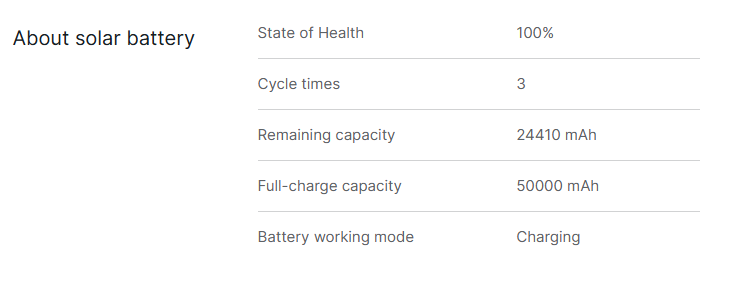 Figure 1: Battery Health
| Field | Description |
|---|---|
| Serial number | Displays the serial number of the solar battery. |
| Firmware version | Displays the firmware version of the solar battery. |
| State of Health | Shows the current maximum capacity compared with the designed battery capacity. |
| Cycle times | Shows the number of completed charge-discharge cycles. |
| Remaining capacity | Shows the current remaining battery capacity in mAh. |
| Full-charge capacity | Shows the maximum capacity the battery can hold when fully charged. |
| Battery working mode | Shows the current battery operating mode. For details, see Battery working mode. |
Battery working mode
| Mode | Description |
|---|---|
| Charging | The battery is charging. |
| Discharging | The battery is supplying power to the gateway. |
| Fully Charged | The battery is fully charged. |
| Fully Discharged | The battery has been discharged to its lower limit. |
| Protect | The battery has entered protection mode due to an unsafe condition. |
| Permanent Fail | The battery has a serious fault and may require replacement or maintenance. |
Solar battery status and event history before a gateway is unassigned remain visible after the gateway is assigned to another Location. After the gateway is deleted, its previous solar battery status and event history are no longer available.


